User Manual
Connecting your Rupeezy account · Last updated: November 1, 2026
PIIP places orders in your own Rupeezy account using your own Rupeezy API key, from a static IP address reserved only for you. Setting this up takes about 10 minutes and is done once.
You will need: an active Rupeezy trading account with F&O enabled, your Rupeezy PIN, and an authenticator (TOTP) set up on your Rupeezy account.
Before you start: open your Rupeezy account through PIIP
PIIP works only with Rupeezy accounts opened through our link. If you don't have a Rupeezy account yet, open it here and enable F&O during sign-up.
Open Rupeezy account →1. Log in to Rupeezy Vortex
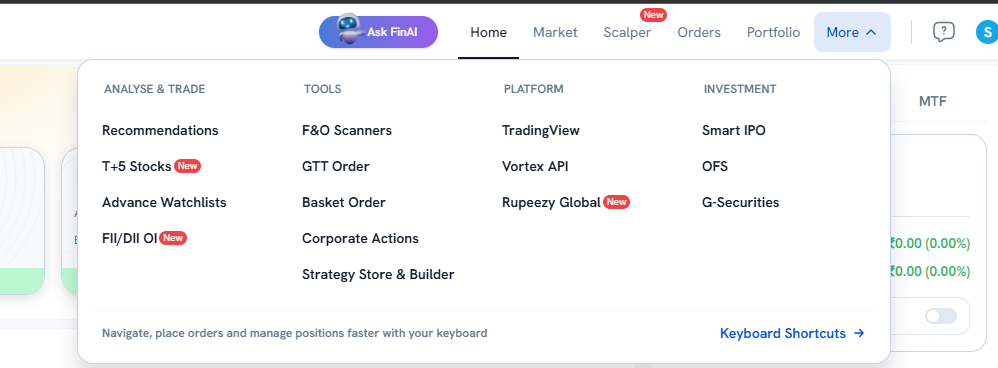
- Open vortex.rupeezy.in, Rupeezy's developer platform. From the Rupeezy web app you can also get there with More → Platform → Vortex API.
- Click Login Using Rupeezy Credentials and log in with your normal Rupeezy account. There is no separate sign-up.
2. Create your API key
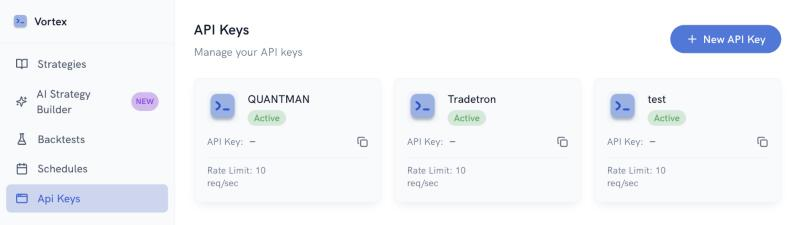
- Open API Keys from the left menu and click + New API Key.
- Fill in the form exactly as below, then click Create API Key.
| Field | What to enter |
|---|---|
| API Key Name | Any name, e.g. PIIP |
| Redirect URL | https://algomart.net/api/broker/callback/<your user id> |
| Postback URL | https://algomart.net/api/broker/postback/<your user id> |
| Description | Optional |
| Algo ID | Leave empty |
| App Icon | Optional |
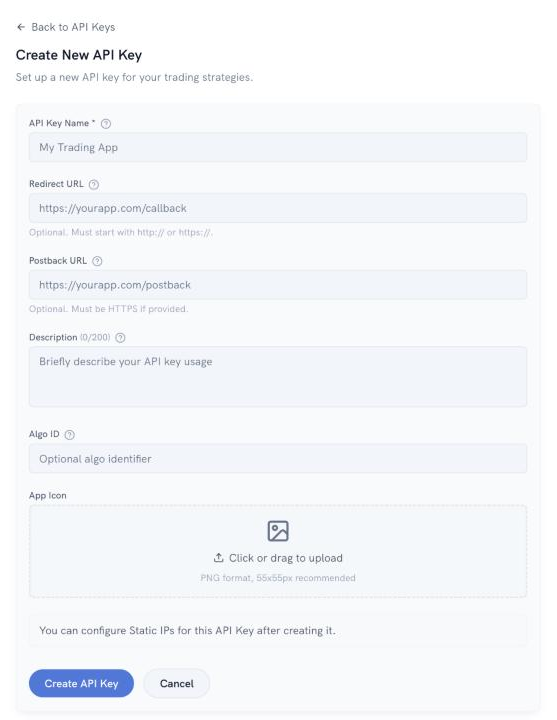
Your user id is part of both URLs. The exact URLs, already filled in for you, are shown on the Authentication page after you sign in.
3. Copy your App ID and API Secret
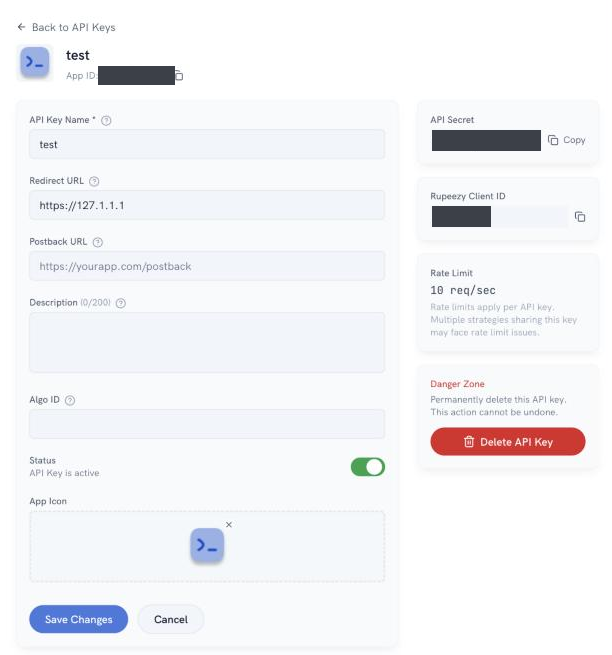
- Open the new key from the API Keys page.
- Copy the App ID shown under the key name (it starts with
dev_). - Copy the API Secret with the Copy button.
- Make sure the key's Status toggle is on.
4. Register your static IP
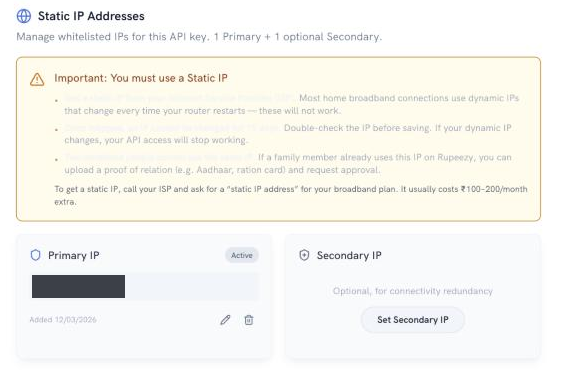
SEBI rules require every API order to come from a static IP registered to your account. PIIP reserves a permanent IP address for you, and all your orders are sent only from it.
- Sign in to PIIP and open the Authentication page. Copy the address shown under Your static IP (IPv6).
- In Vortex, open your API key and scroll to Static IP Addresses.
- Paste the address as your Primary IP and save. Leave the Secondary IP empty.
5. Set up TOTP and save the setup key
PIIP logs you in to Rupeezy automatically every trading day (mobile → TOTP → PIN). For that it needs the TOTP setup key: the text code Rupeezy shows next to the QR code when you turn on TOTP.
- Install an authenticator app on your phone: Google Authenticator, Microsoft Authenticator, Authy or LastPass Authenticator.
- Open Rupeezy's Flow app (or the Rupeezy login page). Enter your User ID and Password and tap Sign in.
- Enter the OTP sent to your registered mobile number.
- On the Set TOTP screen, tap Enable Now.
- The Setup 2FA TOTP screen shows your setup key and a QR code. Tap Copy Key and save the key somewhere safe. This is the key PIIP needs, and Rupeezy shows it only during setup.
- In your authenticator app, tap +, choose Enter a setup key (or Scan a QR code), name it e.g. "Rupeezy", paste the key, keep Time-based and tap Add.
- Back in Flow, type the 6-digit code from the authenticator and tap Enable.
- If Flow asks to Enable Device Security, turn on your phone's screen lock. Rupeezy requires it.

- The setup key is a long code of letters and digits (usually 32 characters), not the 6-digit code.
- PIIP and your authenticator app use the same key, so both keep working side by side.
- Spaces in the key don't matter. PIIP removes them.
What later logins in the Flow app look like
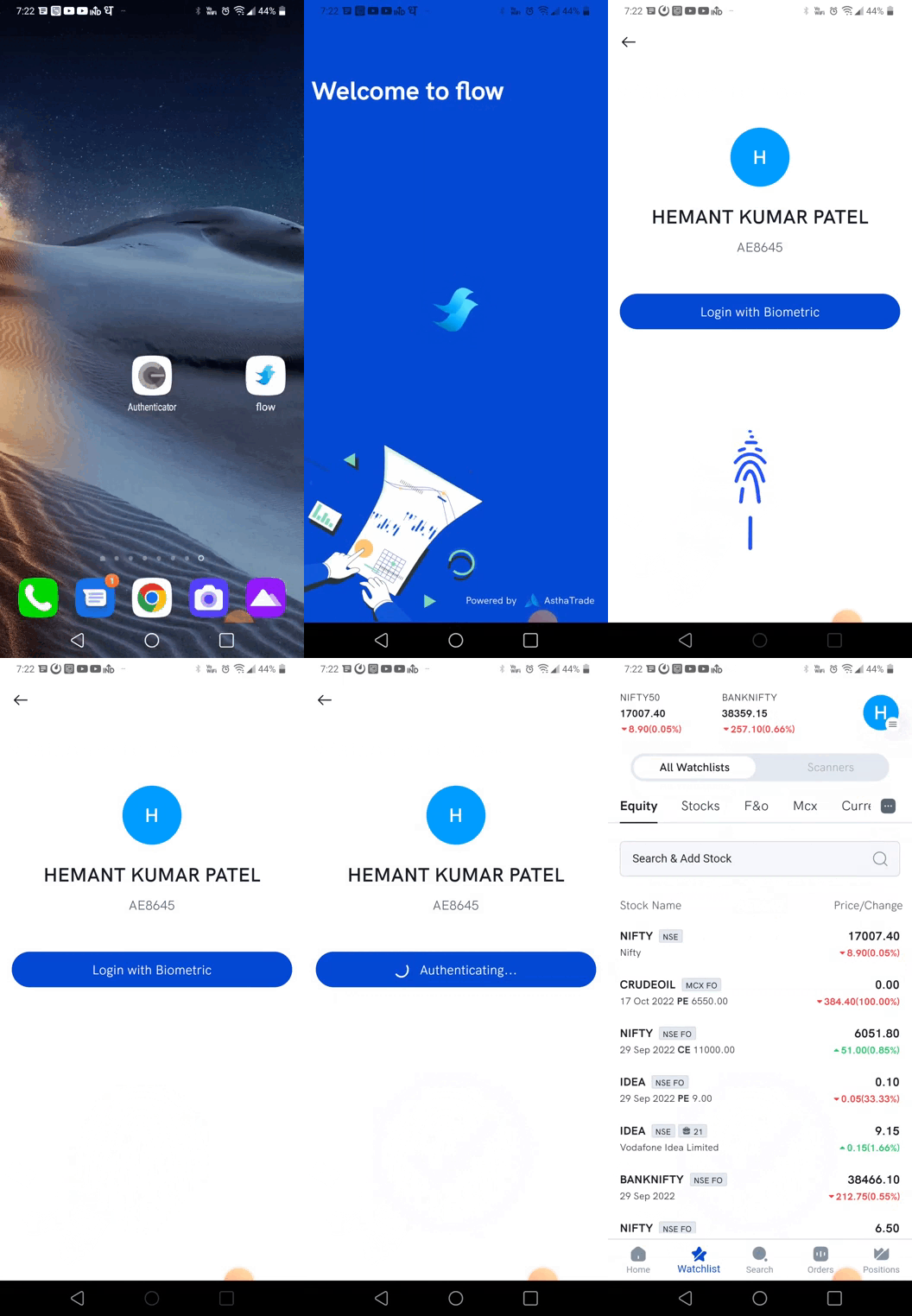
After setup, the Flow app lets you log in with your fingerprint or face. This does not affect PIIP: PIIP always logs in with your mobile number, TOTP and PIN.
Rupeezy's guide: How do I set up TOTP for app login?
6. Connect Rupeezy in PIIP
- Open the Authentication page.
- Enter the four details:
- Application ID: the App ID from step 3
- API Key: the API Secret from step 3
- TOTP Secret Key: the setup key from step 5
- Rupeezy PIN: your 4-6 digit Rupeezy login PIN
- Click Save & Verify. PIIP logs in to Rupeezy once to check your details. Your registered mobile number is used automatically.
- When it shows Logged in today, you are connected.
All details are stored encrypted. PIIP never shows them again, not even to you.
7. Every trading day
- PIIP logs you in to Rupeezy automatically before 9:00 AM IST.
- Deploy the algorithms you want to run from the Algos page. You must deploy manually each trading day.
- Keep enough margin in your Rupeezy account. Orders without margin are rejected by Rupeezy.
- If the Authentication page shows Not logged in yet, click Log in to Rupeezy now.
8. Troubleshooting
| Message | What to do |
|---|---|
| TOTP failed | The setup key is wrong or was reset in Rupeezy. Re-enter the current setup key (step 5). |
| PIN failed | Re-enter your Rupeezy PIN. Too many wrong attempts can lock your Rupeezy login. |
| Mobile failed | Your PIIP mobile number must be the one registered with Rupeezy. Contact PIIP support to correct it. |
| 401 / API key invalid | Check the App ID and API Secret, and that the key's Status is on in Vortex. |
| Orders rejected for IP | The Primary IP in Vortex must match your PIIP static IP exactly (step 4). |
| Static IP not active | New accounts are ready within a minute. If it persists, contact PIIP support. |
9. Security
- PIIP staff will never ask for your PIN, TOTP secret or API Secret by phone, chat or email.
- To stop PIIP from trading, turn off your API key's Status in Vortex, or delete the key.
- If you change your PIN or reset your authenticator in Rupeezy, update your details on the Authentication page the same day.
Rupeezy's own guide: How do I register for the Trading API (Vortex) and generate API keys? · See also our Terms & Conditions.